

Editing Concert Photos: Live Music Workflow Guide (2026)
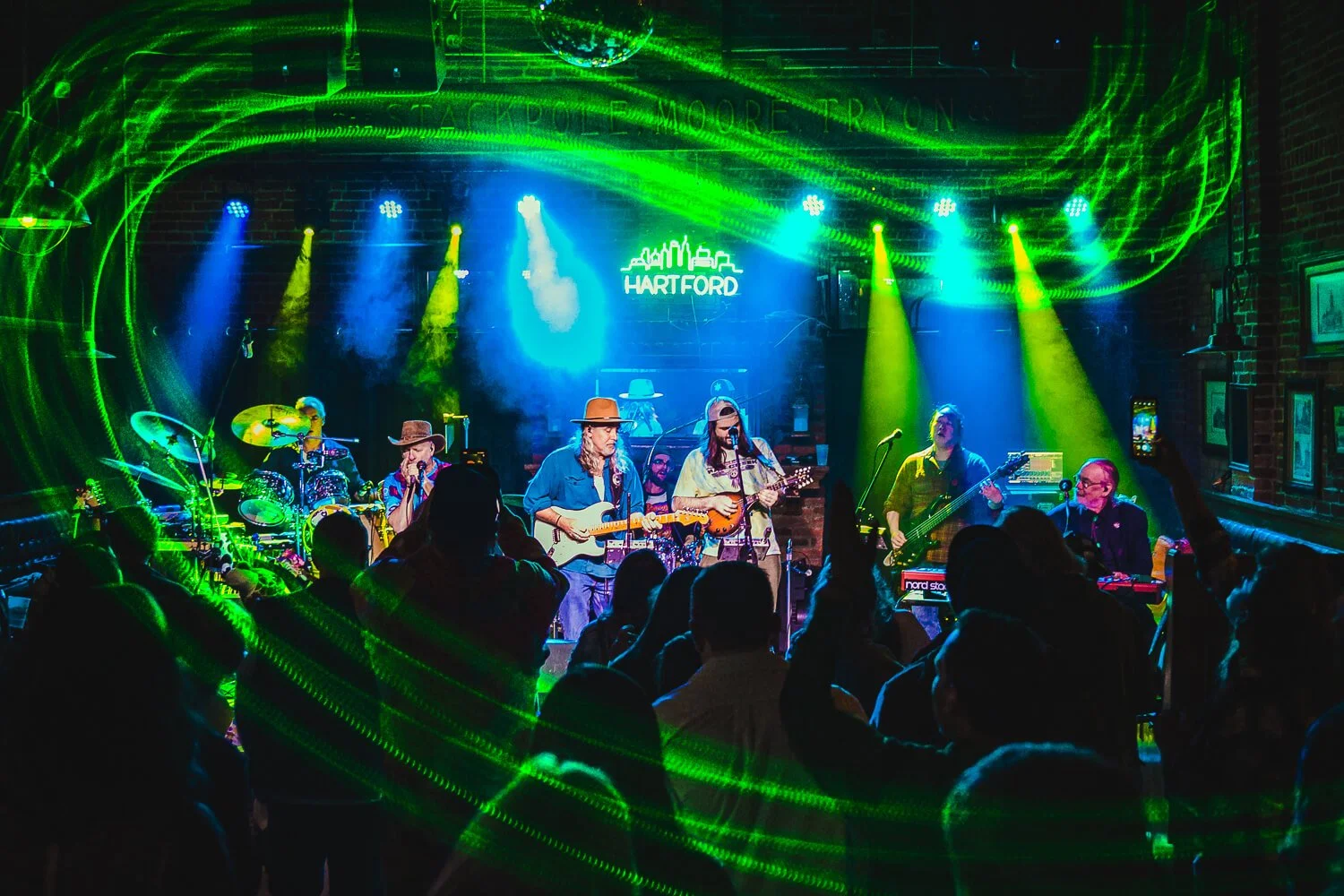
Creamery Station performing live at Arch Street Tavern in Hartford, CT. ©2023 Chris Sidoruk
Last Updated: July 2026
Quick Jump
- Concert Photo Editing Workflow
- Importing & Culling Concert Photos
- Exposure, White Balance & Basic Adjustments
- Color Correction & Managing Stage Lighting
- Noise Reduction & Sharpening
- Batch Editing Workflow
- Editing Different Concert Styles
- Local Adjustments & Lightroom AI Tools
- Common Concert Photo Editing Mistakes
- Frequently Asked Questions
Concert Photo Editing Workflow
Capturing a great concert photo doesn't end when you press the shutter.
Live music venues present some of the most challenging lighting conditions photographers face. Colored LEDs, rapidly changing spotlights, heavy shadows, smoke, and high ISO settings often leave images looking very different from what you experienced in person.
Editing is where those photographs come together.
A thoughtful editing workflow helps recover detail, balance color, reduce noise, and create a gallery that feels cohesive from beginning to end. The goal isn't to make every image look perfect—it's to preserve the atmosphere of the performance while presenting the artist in the strongest possible way.
Whether you're photographing local club shows, theaters, music festivals, or arena concerts, having a consistent editing workflow saves time and produces more professional results.
This guide walks through the complete editing process I use for concert photography, from importing RAW files to exporting a finished gallery.
Importing and Culling Your Photos
Before touching sliders in Lightroom, narrow your gallery down to the strongest photographs.
One of the biggest mistakes photographers make is spending time editing images that will never be delivered.
Start by importing your RAW files and making a quick first pass.
Look for photographs that immediately stand out because of:
sharp focus
strong expressions
interesting stage lighting
dynamic poses
audience interaction
clean compositions
Remove images with:
missed focus
closed eyes
awkward expressions
duplicate poses
distracting obstructions
severe motion blur
Many photographers capture hundreds or even thousands of frames during a concert. Delivering every image isn't necessary—in fact, a carefully curated gallery is almost always stronger than an oversized one.
A smaller collection of outstanding photographs creates a much better experience for both artists and fans.
Exposure and Basic Adjustments
Once you've selected your best images, begin with the global adjustments that establish the overall look of each photograph.
Rather than immediately increasing saturation or adding dramatic contrast, focus on correcting the exposure first.
Typical adjustments include:
Exposure
Highlights
Shadows
Whites
Blacks
The goal is to preserve detail while maintaining the atmosphere of the venue.
Stage lighting often creates intense highlights that can easily clip, particularly around spotlights and LED fixtures. Reducing highlights slightly can recover valuable detail without making the image appear flat.
Likewise, lifting shadows too aggressively may introduce additional noise and reduce the dramatic feel of the performance.
A balanced starting point usually provides the best foundation for the rest of the editing process.
White Balance and Color Correction
White balance is one of the most challenging aspects of concert photography.
Unlike portrait or landscape photography, concerts are rarely lit with neutral light. Modern stage productions intentionally use dramatic colors to create mood and energy.
That means "correct" white balance is often subjective.
Instead of trying to neutralize every image, aim to preserve the feeling of the performance.
Good white balance adjustments should:
maintain realistic skin tones when possible
preserve intentional stage colors
reduce distracting color casts
create consistency throughout the gallery
Avoid removing all of the reds, blues, and magentas simply because they aren't neutral.
Those colors are part of the performance.
The best edits enhance the lighting rather than erase it.
Adding Contrast, Texture, and Presence
After exposure and white balance are established, you can begin shaping the overall look of the photograph.
Subtle adjustments to contrast help separate the performer from the background while adding depth to the image.
Tools commonly used include:
Contrast
Texture
Clarity
Dehaze (used sparingly)
These adjustments can make stage lighting appear more dramatic and improve the visibility of details in clothing, instruments, and facial expressions.
It's important to avoid over-processing.
Excessive clarity or texture can produce harsh-looking skin, exaggerated noise, and an unnatural appearance.
Instead, build contrast gradually while keeping the image believable.
Remember that concert photography often benefits from preserving some shadows. Not every dark area needs to be opened up.
Sometimes those shadows are exactly what gives the photograph its atmosphere.
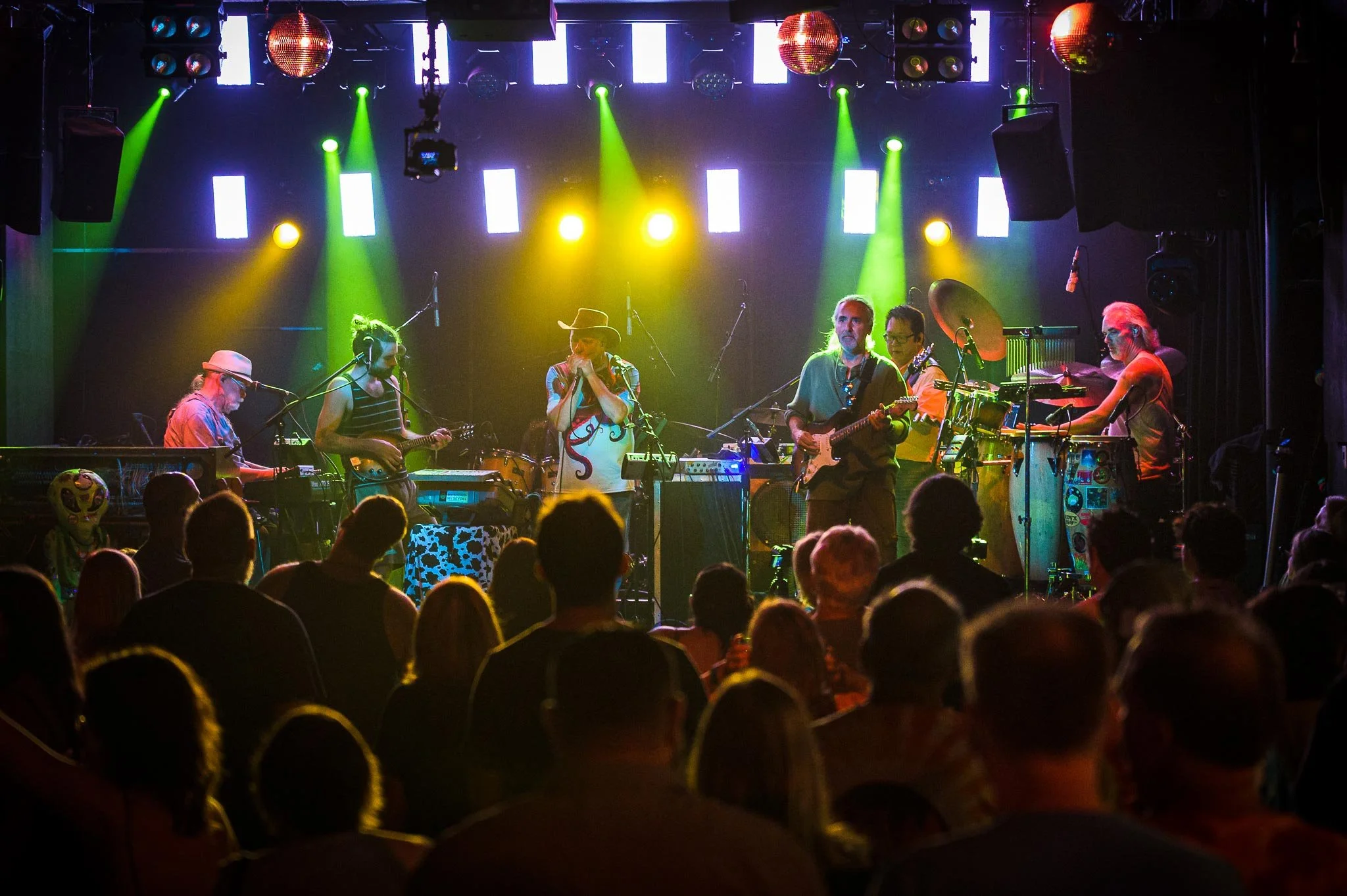
Creamery Station at Park City Music Hall in Bridgeport, CT. ©2024 Chris Sidoruk
Noise Reduction & Sharpening
High ISO is simply part of concert photography. Modern cameras produce remarkably clean files at ISO 3200, 6400, and even higher, but every image benefits from thoughtful noise reduction. The goal isn't to eliminate every trace of grain—it's to reduce distracting noise while preserving detail and texture.
A little grain often looks more natural than an overly smooth, plastic-looking image.
Start with Exposure First
Always adjust exposure before applying noise reduction.
Brightening a dark RAW file can reveal additional shadow noise, so it's important to complete your basic exposure adjustments first. Once your tonal balance looks correct, evaluate how much noise is actually visible.
Apply Noise Reduction Conservatively
Most editing software separates noise reduction into two categories:
• Luminance Noise — grain-like brightness variation
• Color Noise — unwanted colored speckles
Color noise can usually be reduced fairly aggressively with little downside.
Luminance noise should be applied carefully. Too much quickly destroys fine details like:
• facial features
• hair
• guitar strings
• clothing textures
• instrument details
Zoom to 100% when evaluating noise. A photo that looks noisy at 300% may appear perfectly clean at normal viewing sizes.
Sharpen After Noise Reduction
Noise reduction softens images slightly, so sharpening should come afterward.
Focus sharpening on important details:
• eyes
• faces
• microphones
• guitars
• logos
• instruments
Use masking (or Detail Masking in Lightroom) to sharpen edges without sharpening smooth backgrounds or shadows. This produces cleaner, more natural-looking files.
AI Noise Reduction
Modern AI tools have dramatically improved high ISO editing.
Adobe Lightroom AI Denoise, DxO PureRAW, and Topaz Photo AI can recover impressive detail from difficult files.
These tools work best on your strongest images rather than every frame in a gallery. Reserve them for portfolio pieces, magazine submissions, prints, or images that need significant recovery.
Batch Editing Workflow
Professional concert photographers rarely edit hundreds of images one at a time. A consistent workflow saves enormous amounts of time.
A typical workflow looks like this:
Import all RAW files.
Cull aggressively.
Edit one representative image from each lighting setup.
Synchronize those settings across similar photos.
Fine-tune individual images only when necessary.
Lighting often remains fairly consistent for several songs before changing dramatically. Instead of editing every image individually, group photos by lighting conditions.
For example:
• Opening act under warm amber lights
• Blue LED lighting during the second song
• White spotlight during acoustic performance
• Final encore with mixed lighting
Editing one image from each lighting setup allows you to synchronize settings quickly while maintaining consistency.
Batch editing dramatically reduces editing time while keeping an entire gallery cohesive.
Editing Different Lighting Situations
No two concerts are lit the same way. Understanding how different lighting affects editing helps produce more consistent results.
LED Lighting
Modern LED stage lights create saturated reds, blues, magentas, and greens that can overwhelm camera sensors.
Rather than neutralizing every color cast, preserve the atmosphere while preventing colors from becoming distracting.
Lower overly saturated channels using HSL adjustments instead of dramatically changing white balance.
Spotlights
Spotlights create extremely bright highlights with deep surrounding shadows.
Prioritize protecting highlights first, then gently lift shadows if needed.
Avoid trying to recover every shadow. Some darkness adds drama.
Mixed Lighting
Many venues use multiple colored lights simultaneously.
Mixed lighting is difficult to "correct" because there often isn't a single correct white balance.
Instead:
• maintain believable skin tones
• reduce extreme color casts
• preserve the atmosphere
Backlighting
Artists illuminated from behind create dramatic silhouettes and rim lighting.
Rather than fighting the silhouette, embrace it.
These images often work best with stronger contrast and deeper blacks.
Smoke and Haze
Stage fog enhances beams of light but can reduce contrast.
Use Dehaze carefully.
Too much creates unnatural halos and overly crisp smoke.
Editing Different Concert Styles
Every genre has its own visual identity. Your editing style should complement the music rather than force every gallery into the same look.
Rock & Metal
Rock shows often benefit from:
• stronger contrast
• deeper blacks
• dramatic lighting
• slightly cooler tones
Maintain texture while embracing the intensity of the performance.
Country
Country concerts generally feature warmer lighting and natural skin tones.
Aim for:
• warm whites
• moderate contrast
• realistic colors
• balanced exposure
Acoustic Performances
Small venues and acoustic shows often feel intimate.
Use softer contrast, gentle color adjustments, and avoid overly dramatic edits.
Festivals
Outdoor festivals involve changing daylight throughout the day.
Maintain consistency across the gallery by grouping edits based on time of day.
Golden hour, afternoon sunlight, and nighttime performances will each require different adjustments.
Jazz & Blues
These performances often feature moody lighting and slower performances.
Subtle edits with controlled shadows usually preserve the atmosphere best.

Max Creek performing live at The Range in Mason, NH. ©2022 Chris Sidoruk
Local Adjustments & Masking
Global adjustments affect the entire image.
Local adjustments allow you to improve only specific areas.
Common uses include:
• brightening faces
• reducing highlights on stage lights
• darkening distracting backgrounds
• increasing clarity on instruments
• enhancing performers while leaving backgrounds untouched
Modern masking tools make selective editing much faster than traditional brush techniques.
Use local adjustments subtly. Viewers shouldn't notice the edit—they should notice the subject.
Lightroom AI Tools
Recent Lightroom updates include AI-powered tools that can significantly speed up editing.
Useful AI features include:
• AI Denoise
• Select Subject
• Select Background
• Sky Selection
• Object Removal
• Generative Remove
These tools can save considerable time, especially when editing large galleries.
Use AI as a starting point rather than a replacement for good judgment. Always review masks carefully, as complex stage lighting can occasionally confuse automatic selections.
Export Settings for Web, Print, and Social Media
Your export settings should match the final destination of the images.
Website & Portfolio
• JPEG
• sRGB color space
• Long edge around 2000–3000 pixels
• Quality 80–90%
These settings balance image quality with fast loading speeds.
Social Media
Each platform compresses images differently.
A good starting point is:
• JPEG
• sRGB
• 2048–3000 pixels on the long edge
• Moderate sharpening for screen viewing
Avoid excessive compression before uploading, as social platforms will apply additional compression.
Client Delivery
For client galleries:
• High-quality JPEG
• Full resolution
• sRGB (or Adobe RGB if specifically requested)
Maintain maximum image quality while ensuring compatibility.
Printing
For prints:
• Full resolution
• High-quality JPEG or TIFF
• Appropriate color space for your print lab
• Output sharpening for print
A calibrated monitor helps ensure prints closely match what you see during editing.
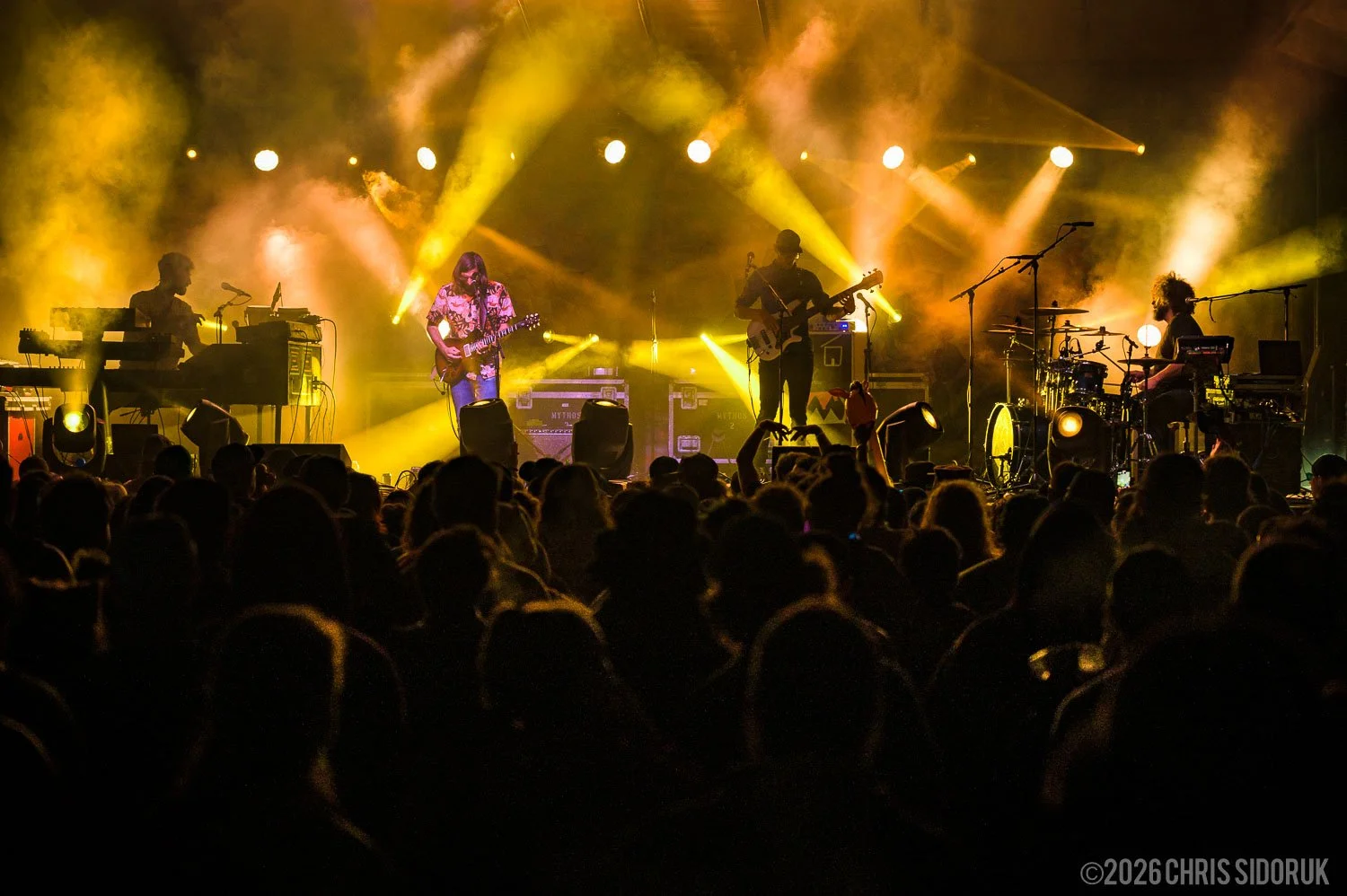
Dopapod at Wormtown Music Festival. ©2026 Chris Sidoruk
Composition Review During Editing
Editing isn't just about exposure and color—it's your final opportunity to evaluate composition. While editing can't fix poor framing, it can help you decide which images deserve to be delivered and how to crop them for maximum impact.
As you review each image, ask yourself:
Does the subject immediately grab your attention?
Are there distracting elements around the edges?
Is the musician's expression compelling?
Does the lighting enhance the moment?
Does the image tell part of the story of the performance?
Sometimes a subtle crop can transform a good image into a great one.
Cropping Tips
Consider cropping to:
Remove empty space
Eliminate distracting audience members
Improve balance
Strengthen leading lines
Emphasize emotion
Avoid cropping so tightly that instruments, microphones, or hands feel awkwardly cut off unless it's clearly intentional.
Straightening & Perspective
Concert venues often introduce tilted horizons and awkward camera angles.
Check for:
Crooked stages
Leaning microphone stands
Distorted verticals
Uneven horizons during outdoor festivals
Minor perspective corrections can make an image feel much more polished without looking artificial.
Common Concert Photo Editing Mistakes
Even experienced photographers occasionally over-edit. The strongest concert galleries usually look natural while preserving the atmosphere of the show.
1. Oversaturating Colors
LED stage lighting already produces intense colors.
Adding excessive saturation often creates:
fluorescent skin tones
unrealistic blues and magentas
color clipping
Instead, reduce individual color channels when necessary rather than increasing overall saturation.
2. Removing Too Much Noise
Modern AI noise reduction is impressive, but too much can produce:
plastic-looking skin
smeared textures
loss of instrument detail
unnatural backgrounds
Some grain is completely acceptable—and often expected—in concert photography.
3. Crushing Blacks
Deep shadows can add mood.
Completely clipping them removes detail and makes images feel heavy.
Try to preserve subtle shadow information whenever possible.
4. Over-Sharpening
Too much sharpening creates:
halos around performers
crunchy textures
distracting artifacts
exaggerated digital noise
Sharpen only enough to restore detail.
5. Overusing Clarity or Texture
These sliders quickly become distracting.
Too much clarity can make:
skin harsh
smoke unnatural
stage lighting overly aggressive
Use them sparingly.
6. Correcting Away the Mood
Not every concert should look neutral.
Blue lighting should often remain blue.
Red lighting should often stay dramatic.
The goal isn't technical perfection.
It's recreating what the audience experienced.
7. Inconsistent Galleries
One of the biggest giveaways of an inexperienced workflow is inconsistency.
Avoid galleries where every image has:
different white balance
different contrast
different color grading
different exposure style
A cohesive gallery looks far more professional.
Building an Efficient Concert Editing Workflow
As you photograph more shows, efficiency becomes just as important as editing quality.
A typical workflow might look like this:
Import and back up files immediately.
Build Smart Previews (optional).
Cull aggressively using flags or star ratings.
Apply lens corrections and camera profile.
Edit one representative image.
Sync settings across similar lighting.
Fine-tune individual images.
Apply AI masking where needed.
Run moderate noise reduction.
Sharpen appropriately.
Export for the intended destination.
Archive using your 3-2-1 backup workflow.
This process dramatically reduces editing time while keeping your galleries consistent.
Tips for Editing Faster
You don't need to spend five minutes editing every photo.
Professional workflows emphasize consistency and efficiency.
Ways to save time include:
creating Lightroom presets
using AI masking selectively
syncing edits across similar images
learning keyboard shortcuts
culling aggressively before editing
organizing files immediately after import
Editing 100 strong images is much easier than editing 800 average ones.
Final Recommendations
Editing is where your creative vision comes together, but it should always support the photograph rather than overpower it.
Remember these principles:
Capture the strongest image possible in-camera.
Shoot in RAW for maximum flexibility.
Correct exposure before adjusting color.
Preserve the mood of the lighting.
Keep galleries visually consistent.
Use AI tools to save time, not replace judgment.
Don't chase perfection—chase believable, impactful images.
Over time you'll develop an editing style that's recognizable as your own while remaining true to the live performance.
The best concert edits don't call attention to the editing—they make viewers feel like they're standing in front of the stage.
Frequently Asked Questions
Can Lightroom edit concert photos by itself?
Lightroom can handle nearly every aspect of concert photo editing, including exposure adjustments, white balance, noise reduction, masking, and exporting. Photoshop becomes useful for more advanced retouching or compositing.
Should I edit every concert photo individually?
No. Edit one representative image for each lighting setup, then synchronize those settings across similar photographs. Fine-tune only where necessary.
How much noise reduction should I use?
Only enough to reduce distracting noise while preserving texture and detail. Over-processing often makes images look soft and artificial.
Should concert photos always be colorful?
Not necessarily. Some performances work best with vibrant colors, while others benefit from a darker, moodier edit or even black-and-white conversion.
Should I crop every concert photo?
Only when it improves composition. Avoid excessive cropping that significantly reduces image quality.
What color space should I export in?
For websites and social media, export in sRGB.
For professional printing, Adobe RGB or ProPhoto RGB may be preferable if supported by your print workflow.
Should I use AI noise reduction on every image?
No. Reserve AI noise reduction for images with noticeable high ISO noise. Applying it universally increases processing time and isn't always necessary.
How long should editing a concert gallery take?
It depends on the size of the event and your workflow. An experienced photographer with presets and batch editing can often complete a typical concert gallery in one to three hours.
==========
All photographs © Chris Sidoruk. Images are protected by copyright and may not be used, copied, modified, or redistributed without written permission.
Continue Improving Your Concert Photography
Once you've built a solid editing workflow, these guides will help improve every stage of your concert photography process:
Camera Settings & Capture
Gear Guides
Shooting Techniques
Workflow & File Management
